The Node Graph
The node graph is the canvas where you design your workflow. It is a directed graph of typed
nodes connected by their pins, backed on disk by a plain-text .exon file.
Nodes
A node represents a single unit of computation or I/O: fetching a URL, parsing a string,
branching on a condition, printing a message, and so on. Each node has an id, a type (a
dotted, namespaced identifier like flow.control.branch or flow.io.writeLine), a display
name, and zero or more pins.
Pins
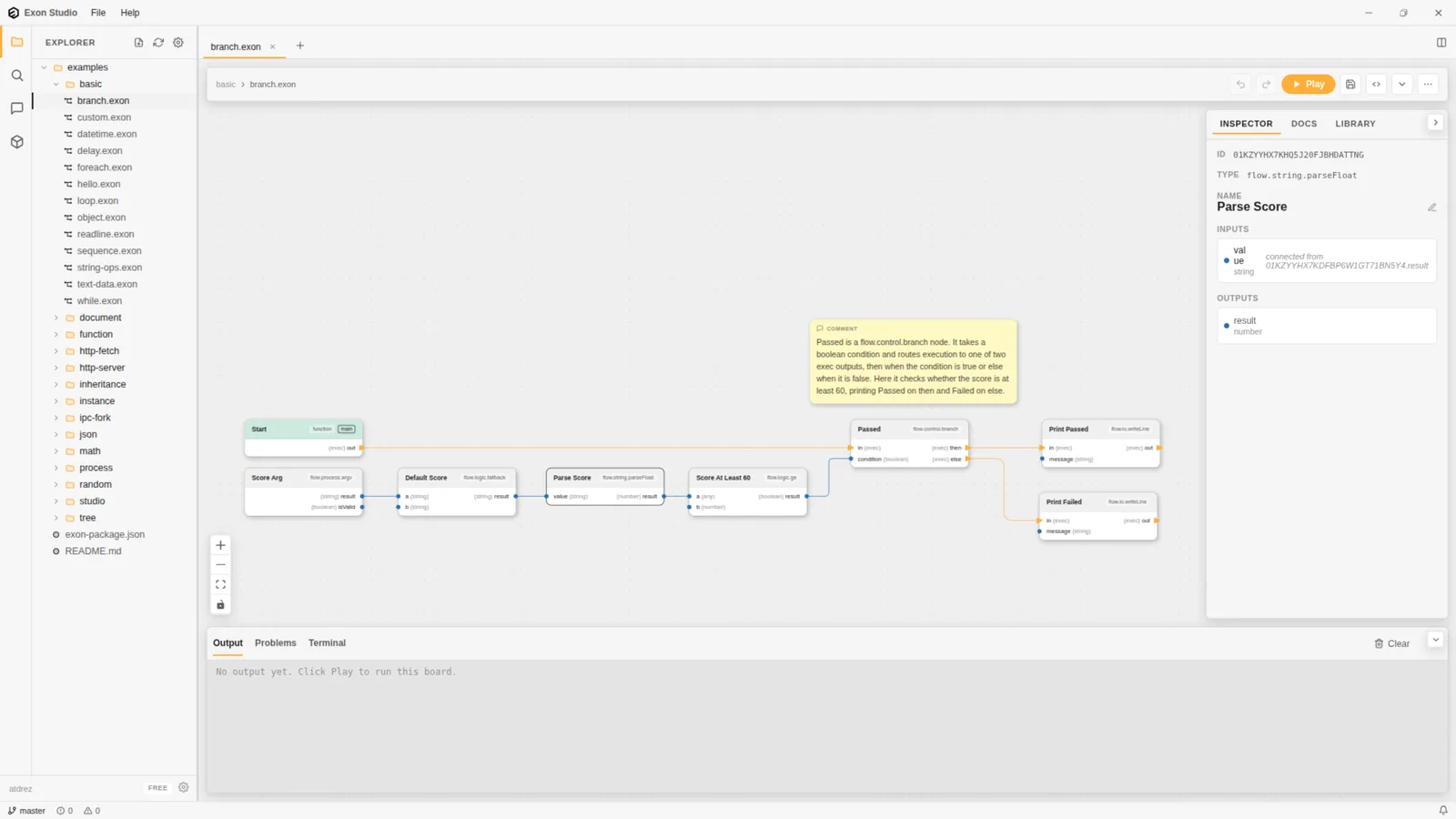
Pins are the typed connection points on a node.
- Input pins appear on the left side of a node. They receive values from connected output pins, or fall back to a default value you set in the Inspector when nothing is connected.
- Output pins appear on the right side of a node. They emit values when the node runs.
Pin types are shown next to each pin name (string, number, boolean, exec, and so on).
An exec pin is not data - it is the execution flow itself, wiring together the order nodes run
in, the same way then/else route a branch to one of two downstream paths.
The Docs panel
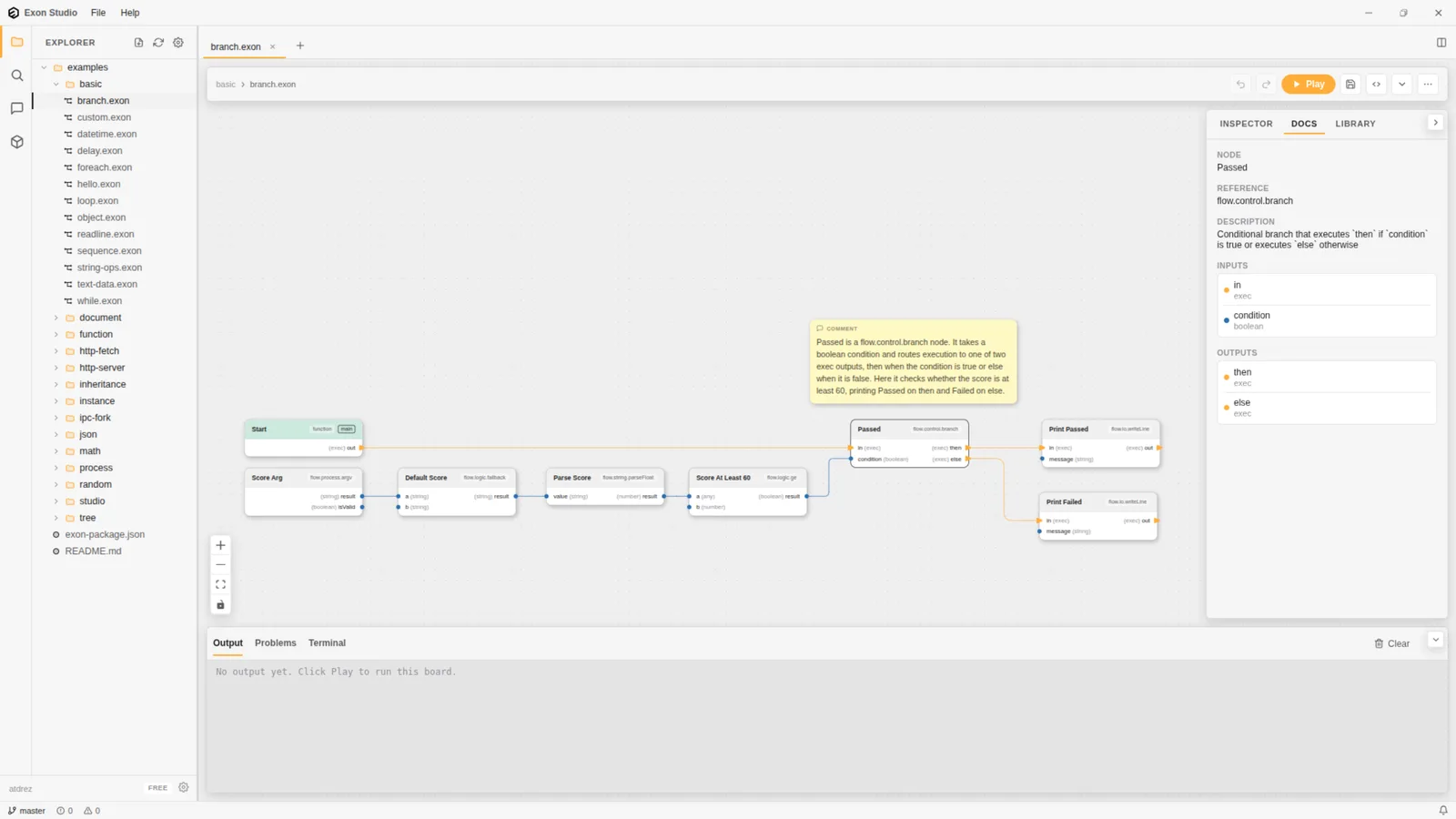
Select a node and open the Docs tab in the right-hand panel to see that node type's reference: its full type name, a description, and every input and output pin it declares. This is generated from the same metadata the runtime uses to validate connections, so it always matches the type you actually have selected.
Connections
Drag from an output pin to an input pin to create a connection. Data (or execution flow, for
exec pins) flows along that connection when the upstream node runs.
To remove a connection, right-click it and choose Delete, or select it and press Delete/Backspace.
Working with nodes
Right-click a node for a context menu with:
- Open - jumps to the node's own board file, when the node is a call into a separate project/function declaration.
- Copy (
Ctrl+C) - copies the node (and, if selected together, other nodes) to the clipboard. - Delete (
Del) - removes the node and any connections attached to it. - Add Return - only on a function's
Startnode, adds a matchingReturnnode for that function.
Right-click empty canvas space to search for a node type to add, or to paste a previously
copied node with Paste (Ctrl+V).
Board file format
Boards are plain text files. A .exon board is a flow.board { ... } block containing one
declaration per node and one flow.connection { ... } per wire between them. Here is a
minimal example equivalent to the branching board pictured above:
flow.board {
    editor: "0.1.0"
    main: "start_1"

    flow.function.def {
        id: "start_1"
        name: "Start"
    }

    flow.io.writeLine {
        id: "print_1"
        name: "Print Message"
        inputs.message.default: "Hello, Exon!"
    }

    flow.connection { source: "start_1" sourcePin: "out" target: "print_1" targetPin: "in" }
}
Node declarations use the node's type as the block name (flow.io.writeLine), an id that
connections refer to, a name for the display label, and inputs.<pin>.default entries for
any input pins you have set a literal value on instead of wiring them up. Toggle the
code view button in the toolbar to see this text form of the board you currently have open
on the canvas.
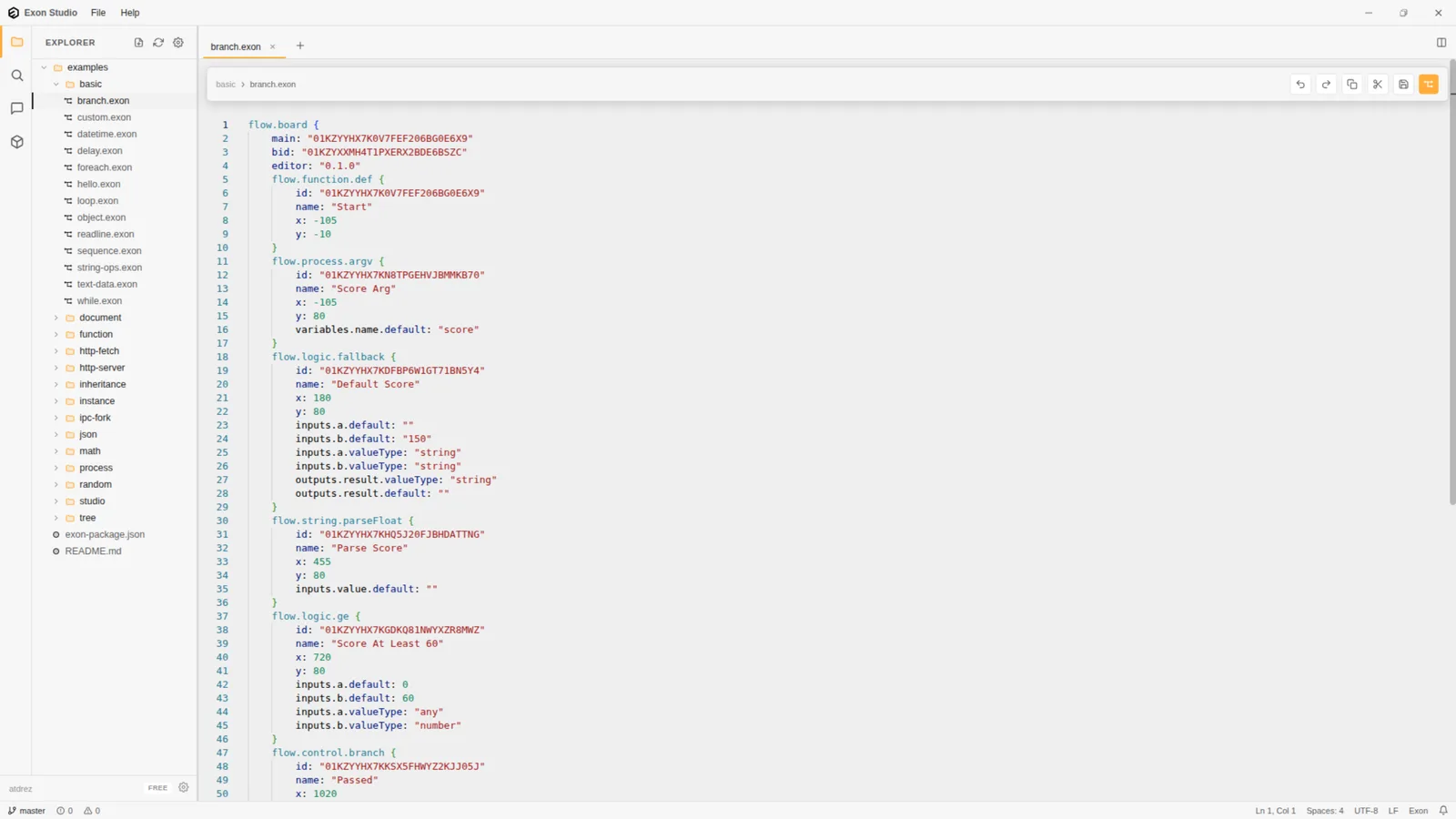
Because boards are plain text, you can open them in any text editor, version control them with Git, and diff them like code.
Finding things across a project
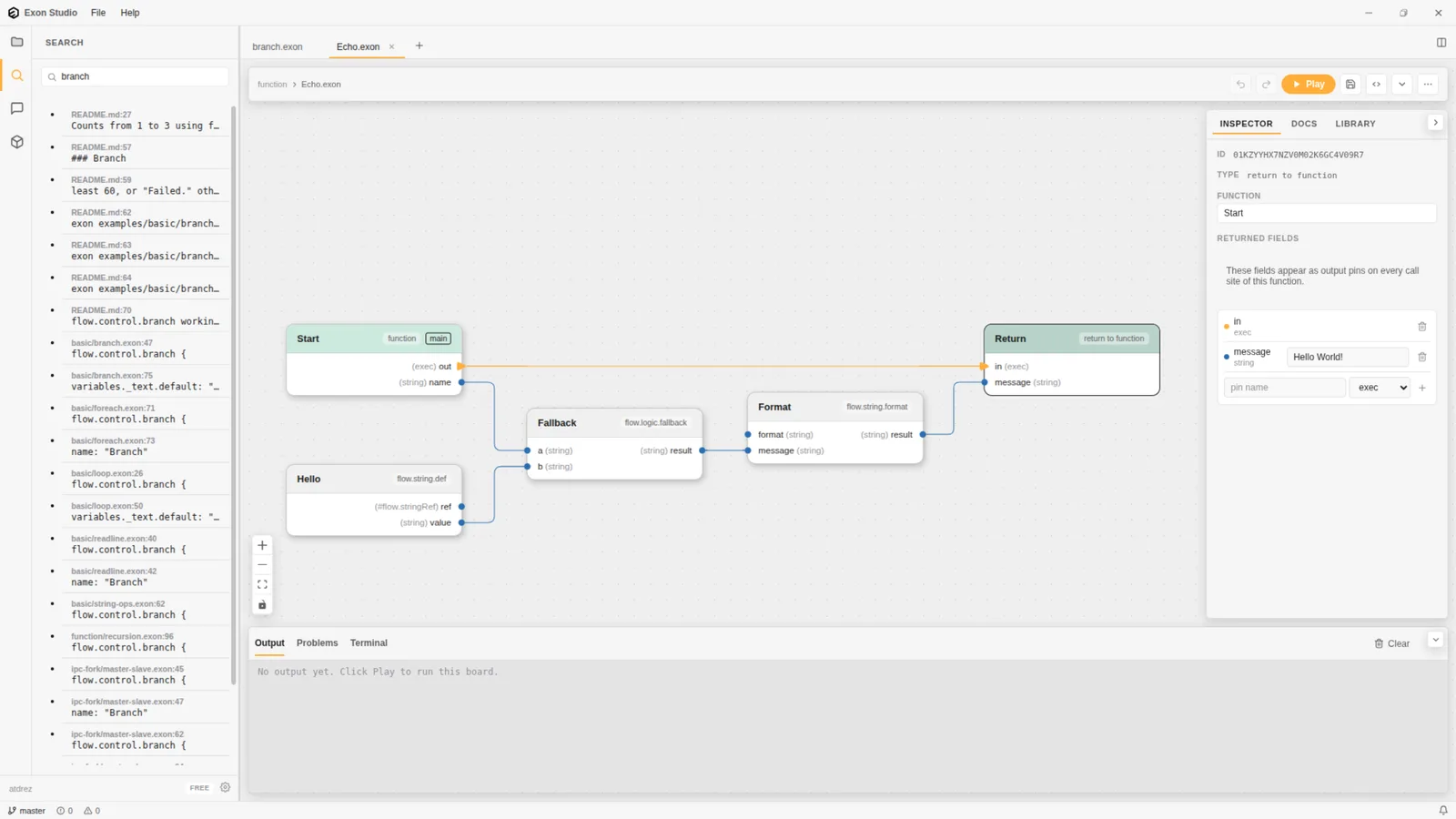
The search icon in the left activity bar opens a project-wide search. It matches text inside
every .exon file and Markdown file in the project, showing the file and line for each hit -
useful for locating every use of a particular node type or a hard-coded value across a large
project.
Keyboard shortcuts
| Action | Shortcut | |---|---| | Copy selected node(s) | Ctrl+C | | Cut selected node(s) | Ctrl+X | | Paste node(s) | Ctrl+V | | Delete selected | Delete / Backspace | | Undo | Ctrl+Z | | Redo | Ctrl+Shift+Z (or Ctrl+Y) | | Save | Ctrl+S | | Save As | Ctrl+Shift+S |
There is no shortcut for running a board - use the Play button in the toolbar.